New project
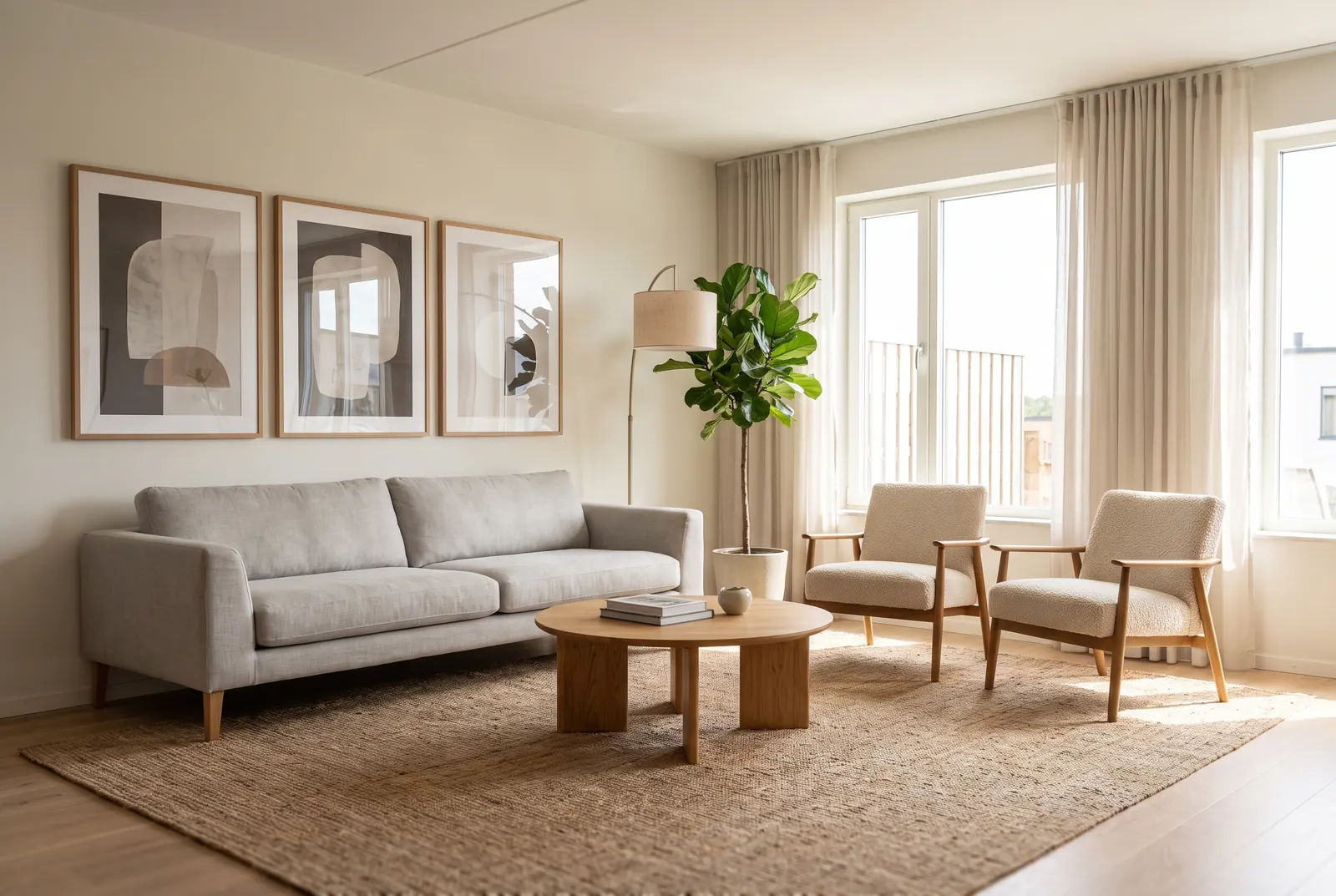
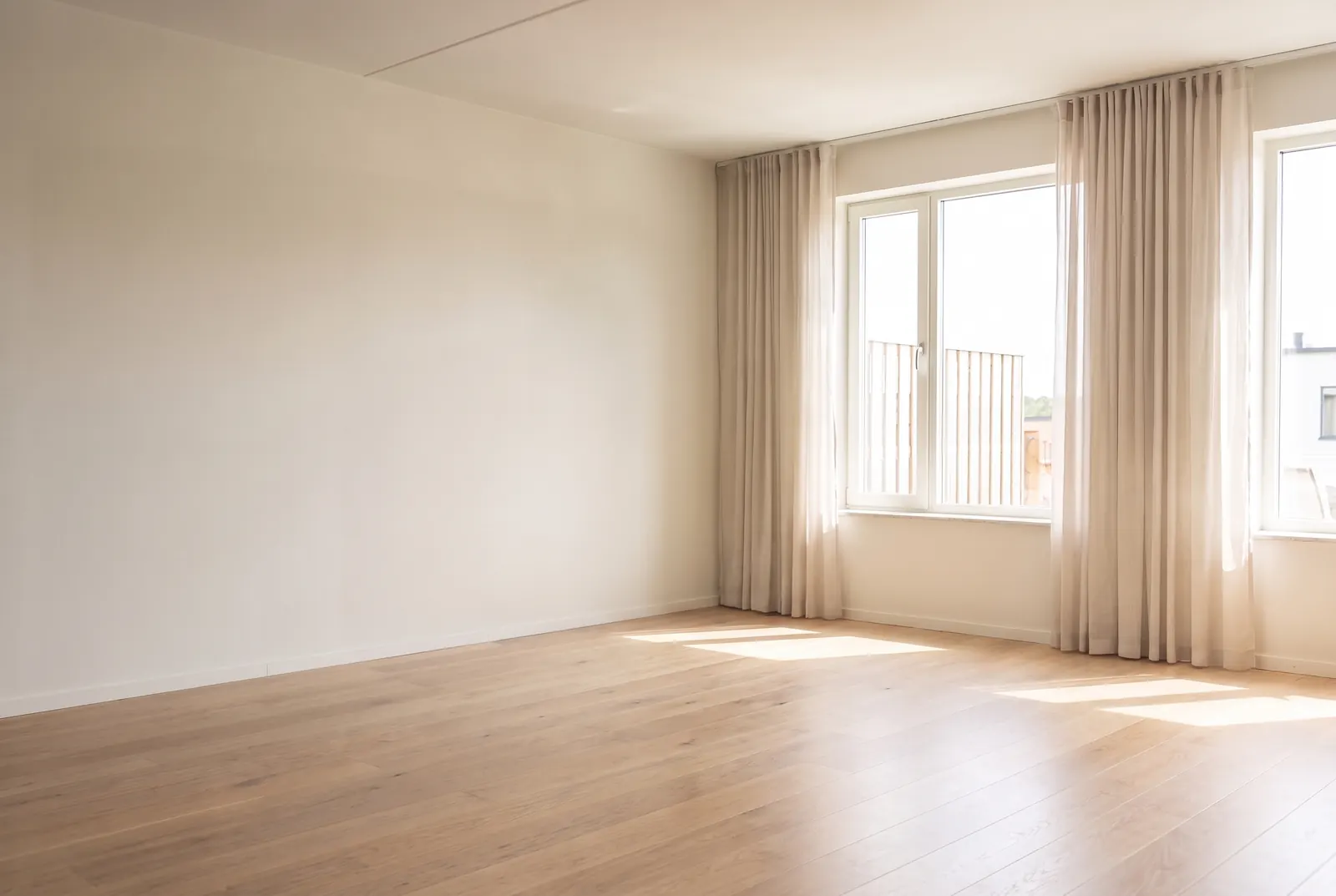
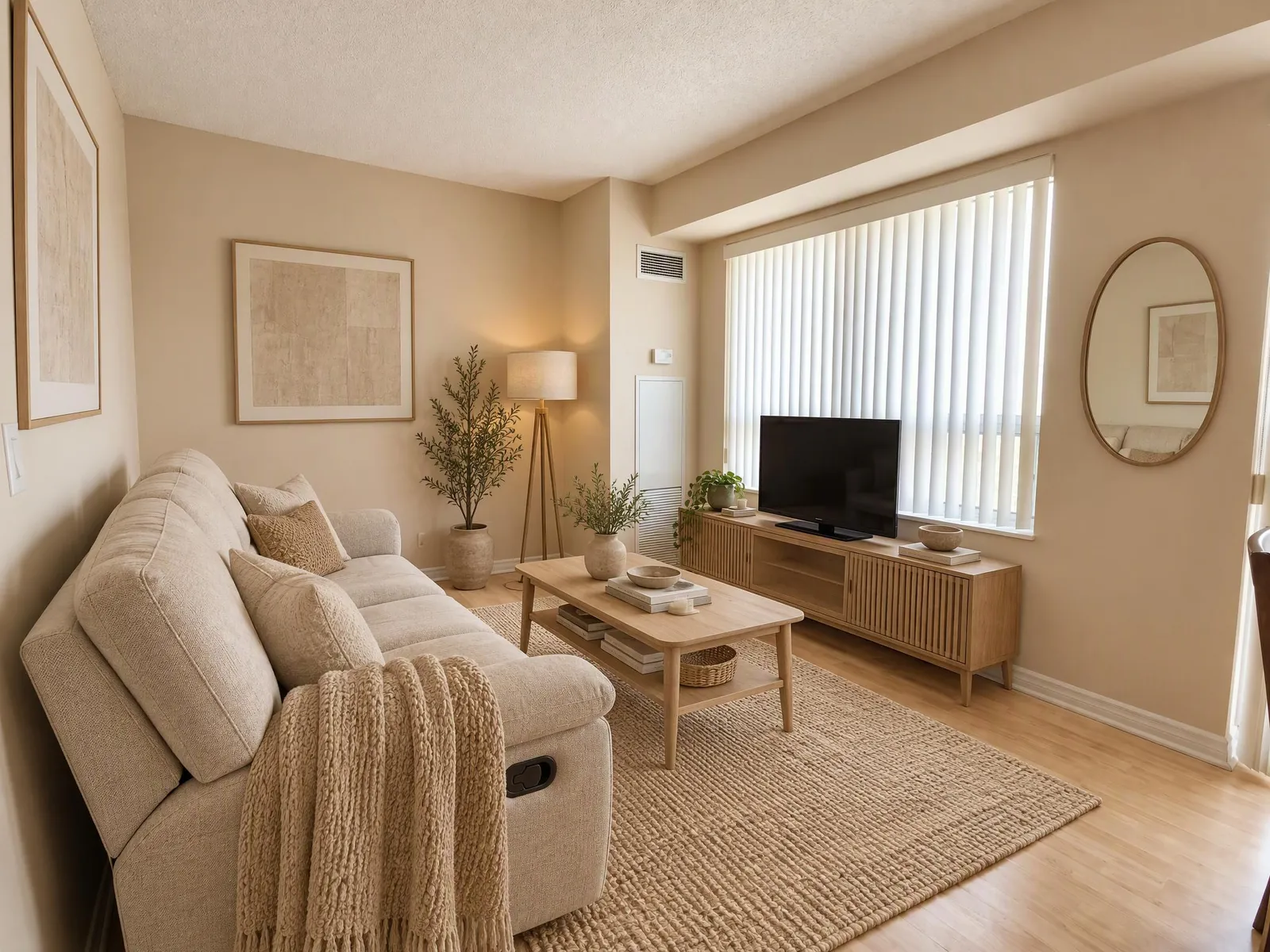
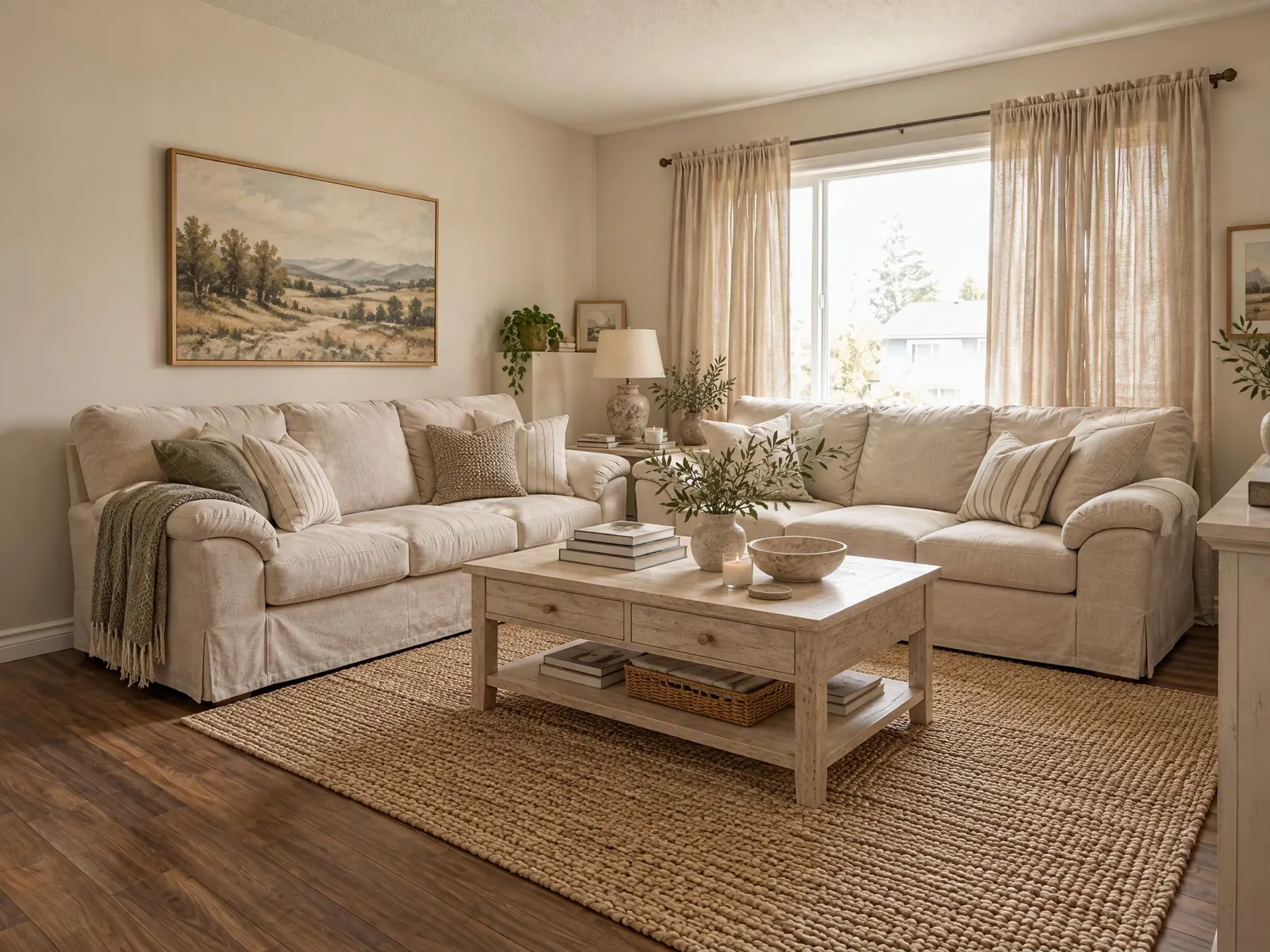
Upload a photo of an empty room and get it furnished in the style you pick, from living rooms and bedrooms to home offices, for listings and rentals.
How AI virtual staging works
- Upload a photo of the empty room. JPEG, PNG and WebP files up to 10 MB work, so a phone photo or a listing photo is fine.
- Pick the room type and a style. The room type decides what goes in: a bed and nightstands for a bedroom, a table and chairs for a dining room, a desk for a home office. Add a few words if you want something specific, or add a style reference image.
- Generate. The staged photo usually arrives in under a minute. Drag the slider to compare it with the empty room, then download it.
The tool tells the AI to add furniture and decor that fit the room's purpose and size, and to keep the room itself: the walls, windows, doors, ceiling and camera angle, and the existing floors and wall finishes. Without your own words, it aims for a look that is inviting and suitable for a listing. Check every staged photo before you publish it, because AI can still change a detail of the room. If it does, generate again or use Max, which stays closer to your photo.
Rooms and styles for AI virtual staging
- Room types: living room, bedroom, kitchen, dining room, bathroom and home office.
- Neutral styles that suit most buyers: Modern, Scandinavian, Minimalist and Japandi.
- Styles with more character: Mid-century, Japanese, Farmhouse, Coastal, Industrial, Boho and Luxury.
- Your own words: say who the home is for, like "young family, durable fabrics, a reading corner", or set the furniture scale, like "compact furniture for a small bedroom".
- A style reference: upload a photo of a staged room you like, or pick one from the Inspiration gallery. The AI follows its palette, materials and furniture style in your room.
Real estate virtual staging, step by step
For a listing, the tools work as a short sequence:
- Empty the room if needed: if the room still has old furniture, run AI Room Cleaner with "All furniture" first.
- Stage it: open Virtual Staging, use "Choose from my creations" to pick the empty result, and stage it.
- Keep one look across the listing: use the same style, or the same reference image, for every room, so the photos read as one home.
- Make a video for social posts: turn the staged photo into a short camera move with AI Real Estate Video.
- Disclose it: in most markets, staged photos must be labeled as virtually staged, and permanent defects must not be hidden. Keep the original photo next to the staged one, and check your MLS rules. Before you use a staged photo, check its walls, windows, moldings, floors and views against the original, because AI can change them.
What AI virtual staging costs
Staging here is paid in credits, not per order. A Lite staged photo costs 1 credit and a Max staged photo costs 4. New accounts get 15 free credits, no card required, so you can stage 15 photos on Lite before you pay. If a generation fails, its credits are refunded.
For regular listings, plans add credits every month and make up to 2 or 4 images per run, so you can pick the best of several stagings. For a one-off sale, a credit pack is a single purchase whose credits never expire. There is no order form and no waiting for a studio: you stage the photo yourself, whenever you need it.
Who virtual staging is for
- Real estate agents: stage empty listing rooms so buyers can see how the space works.
- Home stagers: show a client several directions on their own rooms before moving any furniture.
- Landlords and property managers: furnish empty rentals in photos so the purpose of each room is clear.
- Owners selling on their own: stage the main rooms of your home for the listing photos.
- Buyers of empty or new homes: see how your own furniture style could look in the rooms before you move in.
Tips for staged photos that look real
- Start from a bright, level photo taken from a corner, with the whole floor visible. The AI places furniture where it can see floor.
- Shoot empty rooms at the same height and from a similar angle, so the staged photos look consistent.
- Say the room's purpose if it is not obvious, like "nursery" or "guest bedroom with a single bed".
- In small rooms, ask for less: "compact furniture, one armchair, no coffee table" looks more believable than a full set.
- Use Max for the photos you will publish, and Lite while you choose the style.
What virtual staging AI can't do
- Repair or renovate: it does not fix damaged walls or replace floors. Staging must not hide defects in a listing.
- Stage around existing furniture: it works best on empty rooms. Clear them with AI Room Cleaner first.
- Place furniture to scale: pieces are drawn to look right, not measured. Do not rely on the staged photo to show whether a specific sofa fits.
- Show products you can buy: the furniture is drawn by AI, not from a catalog.
Frequently asked questions
Which rooms can I stage?
Living rooms, bedrooms, kitchens, dining rooms, bathrooms and home offices, in styles from Scandinavian to mid-century.
Do I need to empty the room first?
Staging works best on empty rooms. If the room has old furniture, clear it first with AI Room Cleaner (choose "all furniture"), then stage it.
Do I have to disclose virtual staging in a listing?
In most markets, yes. Label staged photos as virtually staged and keep the original, and check your MLS rules.
Can I stage every room in the same style?
Yes. Pick the same style for each photo, or use the same reference image, so the whole listing looks like one home. Keep the photos together in one project.
How much does virtual staging cost here?
1 credit for a Lite staged photo and 4 for Max. New accounts get 15 free credits, no card required, and credits for failed generations are refunded.
Will it change the floors or walls?
It is made to keep the room as it is, including the existing floors and wall finishes, and to add only furniture and decor. Check each result before you publish it, and generate again if anything in the room changed.