New project
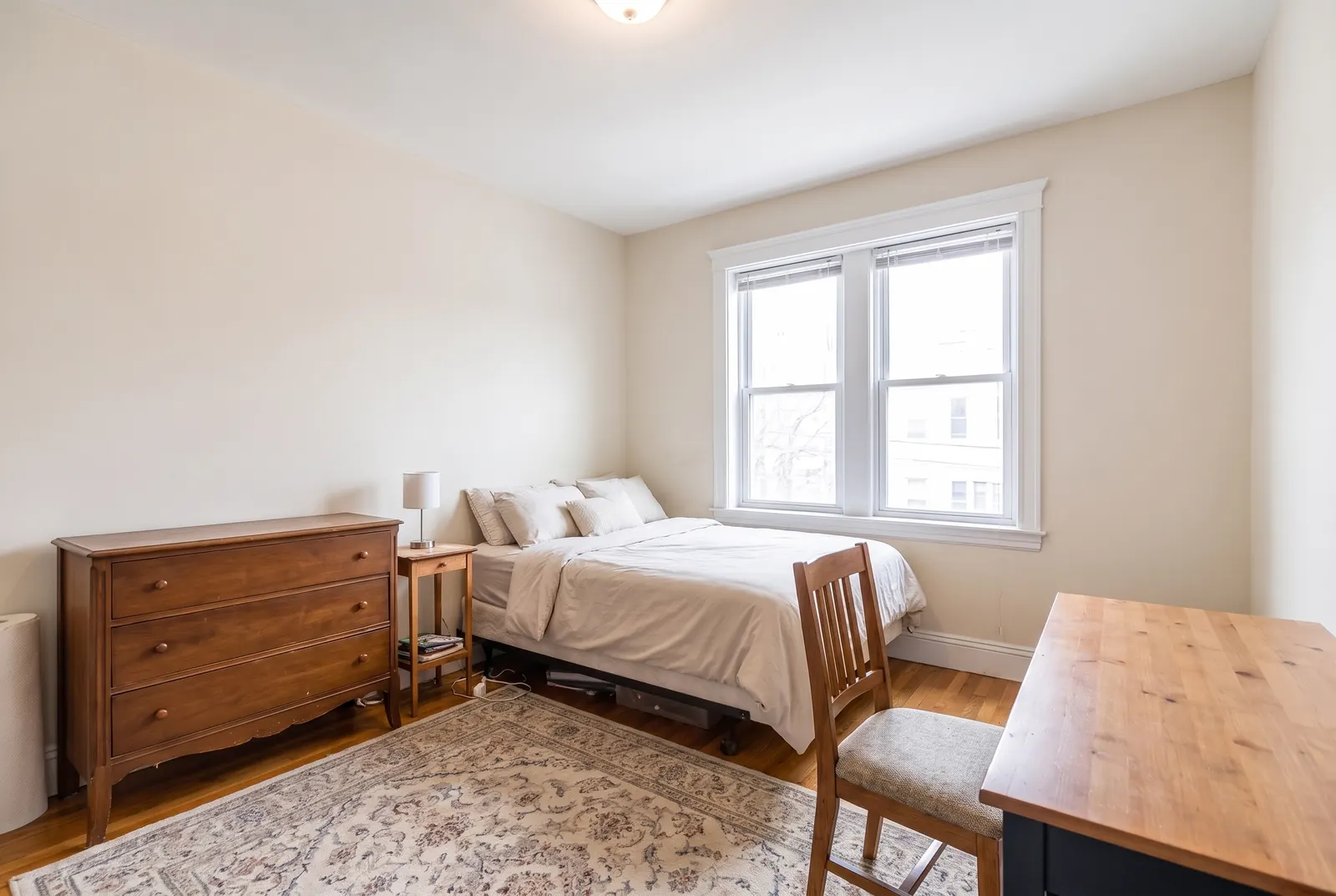
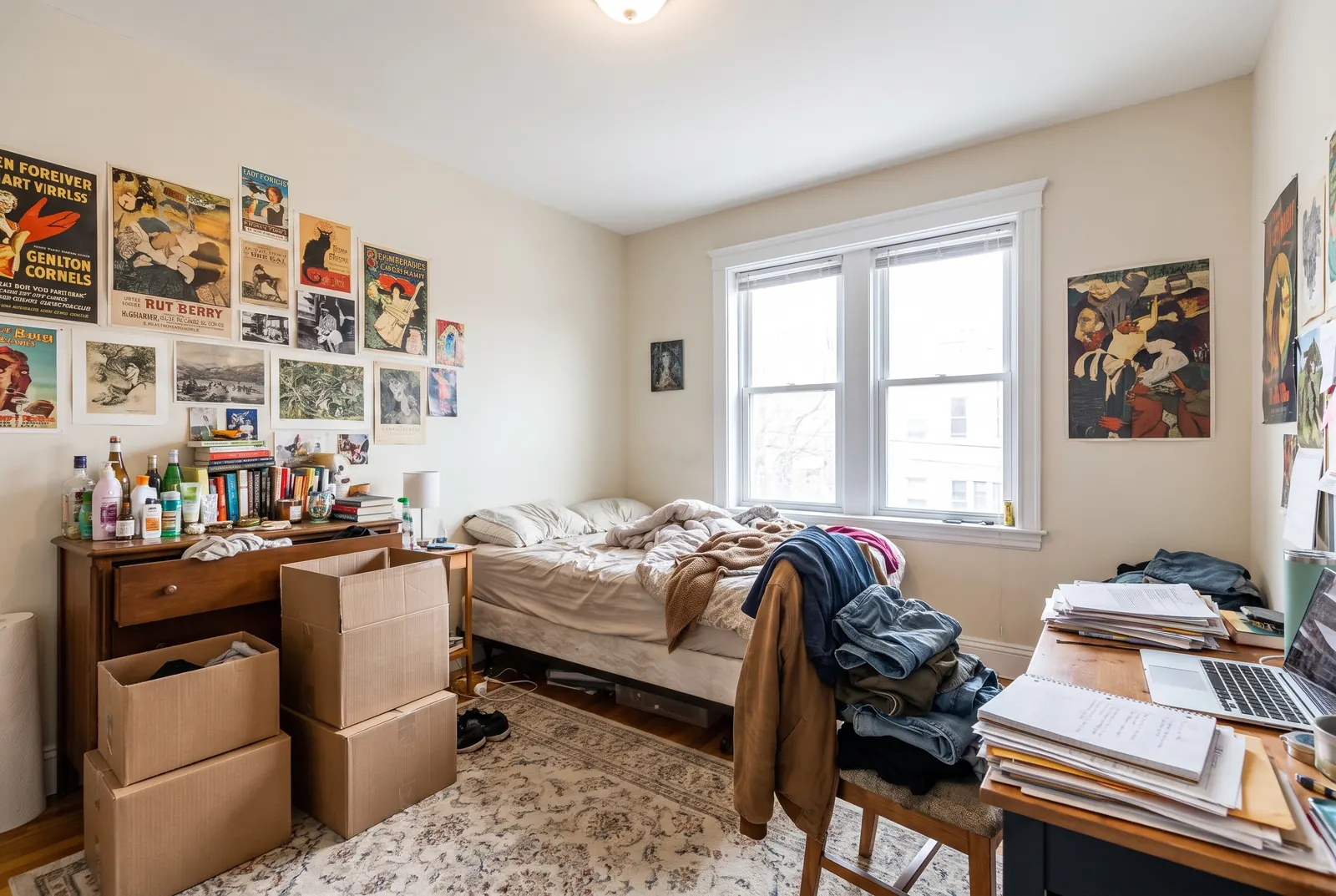
Remove clutter, mess and personal items from room and listing photos, or clear out all the furniture. It is made to keep walls, floors and windows as they are.
AI real estate photo editing for listings
Listing photos mostly need the clutter gone, not the furniture. Upload a photo and remove mess and personal items, or empty the room completely; the tool is made to keep walls, floors, windows and fixtures as they are. Before you use an edited photo in a listing, check its walls, windows, moldings, floors and views against the original, because AI can change them. Then furnish empty rooms with Virtual Staging, or turn your photos into a short tour video for social posts. Removing clutter is common practice, but most markets require you to disclose virtually staged photos, so keep the original alongside the edited one.
How the AI room cleaner works
- Upload a photo of the room. JPEG, PNG and WebP files up to 10 MB work.
- Choose what to remove: "Clutter only" or "All furniture".
- Generate. The result usually arrives in under a minute. Drag the slider to compare, then download it.
With "Clutter only", the tool asks the AI to remove clutter, personal items, loose objects, cables and mess from surfaces and floors, and to keep the furniture. With "All furniture", it asks for a completely empty room: furniture, decor and clutter go, and the original floor, wall and ceiling finishes stay, with the removed areas filled in. Either way it is told to keep the room's walls, windows, doors, ceiling and camera angle. Check each result, because AI can remove something you wanted to keep or leave a trace behind. If it does, generate again.
AI declutter: clutter only
Most rooms do not need to be emptied; they need the mess gone. "Clutter only" clears counters, tables, shelves and floors of the things that make a photo look busy, like mail, toys, cables, bottles and laundry, and keeps the sofa, bed, tables and chairs. Use it for listing photos, rental ads, a sale post or just to see your own room tidy.
Empty a room with AI
"All furniture" removes everything and is made to keep the room itself. It is the first step when you want to show a room as a blank space, or restage it. Empty the room here, then open Virtual Staging and pick the empty result with "Choose from my creations" to furnish it in a new style. Or use Interior Design on it for a complete redesign.
Who uses an AI room cleaner
- Real estate agents: tidy listing photos without a second shoot.
- Landlords and property managers: clear tenants' belongings from rental photos.
- People selling furniture or a home themselves: make the photo about the item or the room, not the mess.
- Home stagers: empty a room before staging it virtually.
- Anyone planning a refresh: see the room clean, as a starting point for a redesign.
Free to start: Lite and Max
New accounts get free credits to start, and no card is needed. Current credit costs and plans are on the pricing page. You choose a quality level on every run. Lite is faster and uses fewer credits. Max gives sharper detail, closer to your photo, which shows where removed objects are filled in. Use it for photos you publish. If a generation fails, its credits are refunded.
Tips for a cleaner result
- Shoot in daylight with the lights on, from a corner, with the phone level.
- Big piles hide the floor and walls behind them. The AI has to fill those areas in, so check them closely.
- For listing photos, keep the camera position the same for the original and the cleaned photo.
- If one object stays, run it again; each result differs a little.
Clutter only or all furniture: how to choose
- Choose "Clutter only" when the furniture helps: a furnished listing, a rental ad, or a room you want to see tidy.
- Choose "All furniture" when the furniture is in the way: old or mismatched pieces, a room you want to restage, or a blank space to redesign.
- Not sure? Run both on the same photo and compare them side by side; History keeps both.
- "Clutter only" is selected when this page opens. Switch to "All furniture" under "What to remove".
What an AI room cleaner can't do
- Repair the room: it does not fix stains, cracks or damage, and listing photos must not hide defects.
- Pick single objects: you choose clutter or all furniture; you cannot point at one item to remove.
- Know what is hidden: areas behind removed objects are filled in to match, not photographed.
- Get every detail right: check the result and generate again if needed.
Frequently asked questions
What does AI declutter remove?
With "clutter only" it removes mess, boxes, clothes and personal items and keeps the furniture. With "all furniture" it empties the room completely, ready for staging.
Will the walls and floor look real after?
That is what it is made to do: it keeps walls, floors, windows and fixtures and fills in the areas behind removed objects to match, so the photo still shows the same room. Check each result, because AI can still change a detail.
What can I do with the decluttered photo?
Use it for a listing or a sale post, or as a clean start: furnish it with Virtual Staging or restyle it with AI Interior Design.
What edits does it make to listing photos?
It removes clutter and personal items, or all the furniture, and is made to keep walls, floors, windows and fixtures as they are. For empty rooms, use Virtual Staging to furnish them; for social posts, turn any photo into a short tour video.
Is it allowed to edit real estate photos with AI?
Removing clutter and staging furniture is common practice, but most markets require you to disclose virtually staged photos and not hide permanent defects. Check your local MLS rules, and keep the original photo alongside the edited one.
Can I remove just one object?
Not by pointing at it. Choose "Clutter only" to keep the furniture, or "All furniture" to empty the room.
Can I furnish the room after emptying it?
Yes. Open Virtual Staging, pick the empty result with "Choose from my creations" and stage it in the style you want.
Is the AI room cleaner free?
It is free to start: new accounts get free credits, no card required. Current costs are on the pricing page.