New project
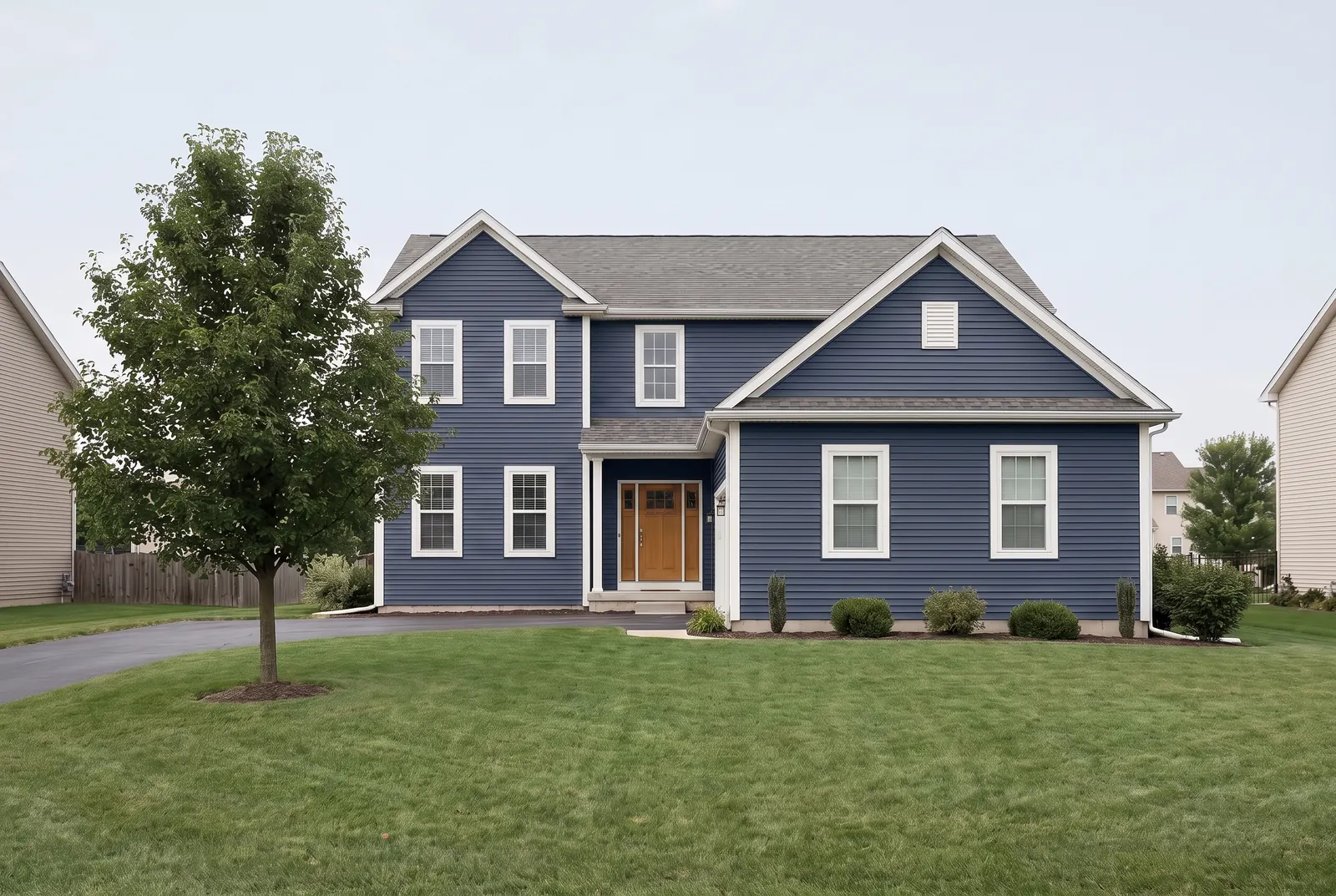
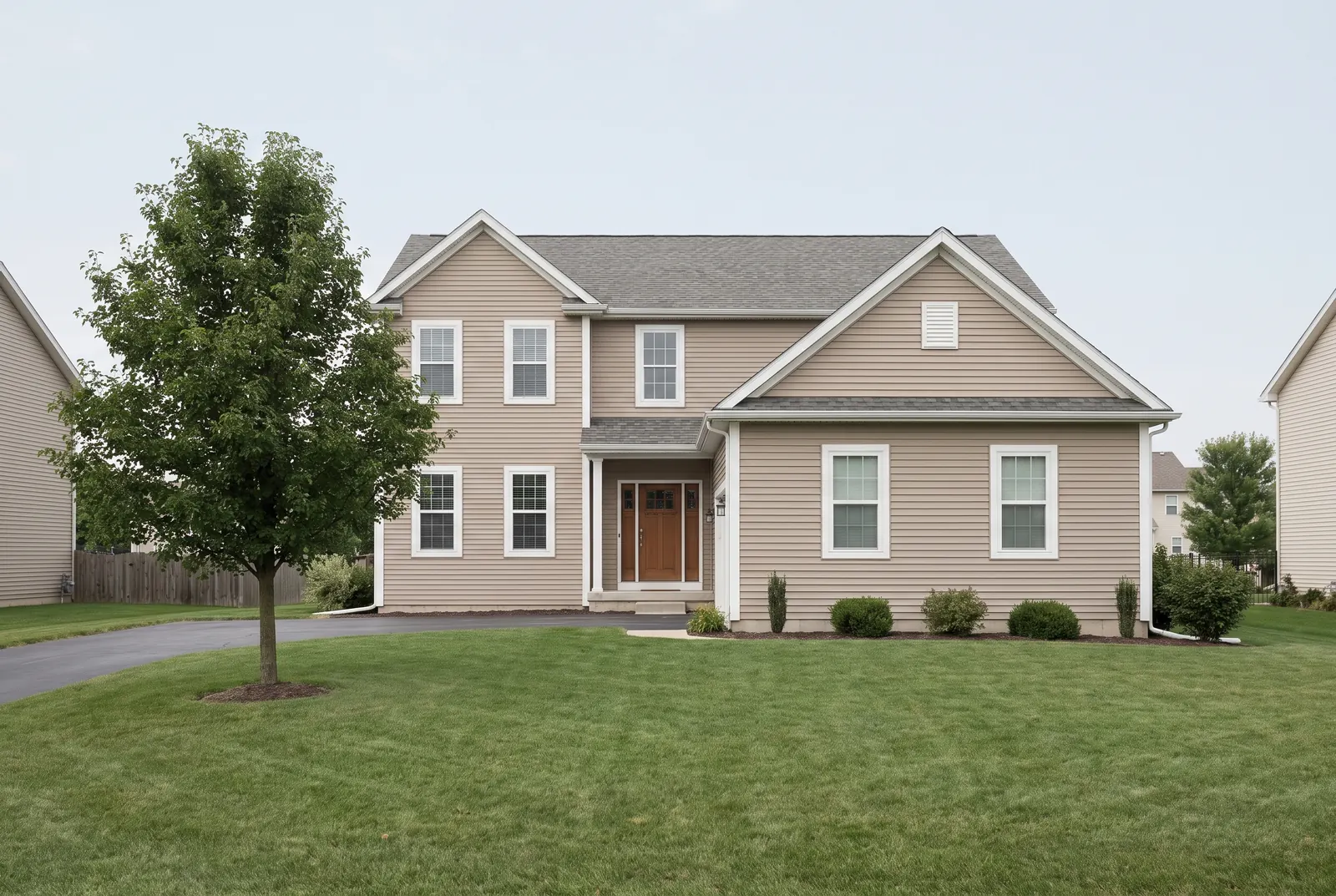
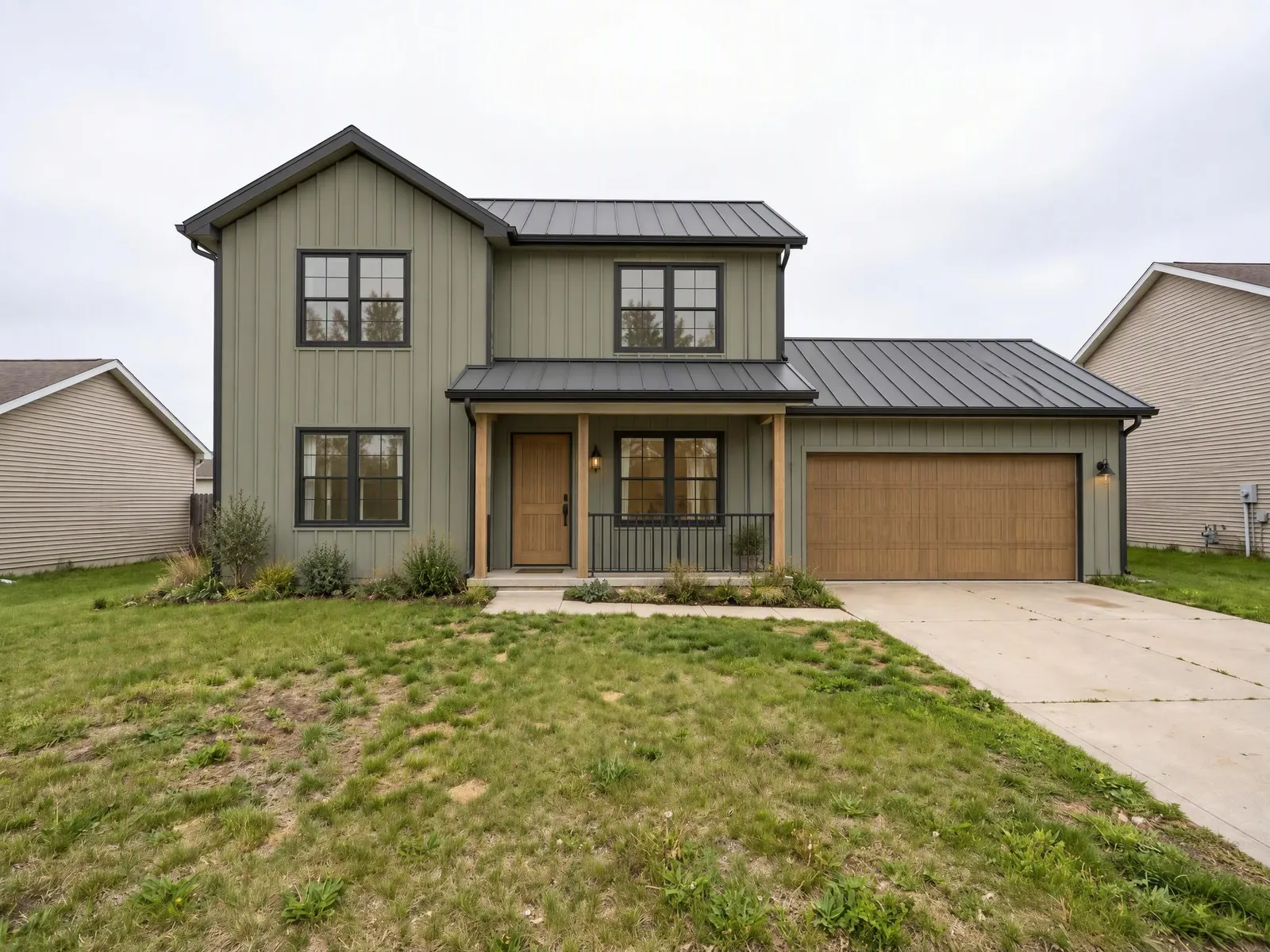
Home exterior visualizer for your own house photo: try siding, trim, front door, roof and garage door colors before you buy paint or call a contractor.
Siding visualizer
See new siding colors on a photo of your own house, not a stock model. Take a straight-on photo of the front in daylight, upload it and pick a color, then describe the material if you like, such as "vertical board and batten" or "cedar shake". The tool is made to keep the roof, windows and the shape of the house as they are. Switch the surface to trim, front door, roof or garage door to check the whole color scheme together.
How the exterior paint visualizer works
- Upload a photo of your house. A straight-on daylight shot of the front, with the whole facade in frame, works best. JPEG, PNG and WebP files up to 10 MB work.
- Pick the surface (siding, trim, front door, roof or garage door) and a color. Add a few words for the finish or material if you like, like "satin black front door" or "dark charcoal standing seam roof".
- Generate. The result usually arrives in under a minute. Drag the slider to compare, then download it or try the next color.
Each run changes one surface. The tool tells the AI to repaint only that surface and to keep everything else as it is: the other surfaces, the windows, the planting, the sky, the light and the camera angle. That way two results differ only in the color you picked. Check each result, because AI can occasionally touch a nearby detail, like a gutter or a light fixture. If it does, run it again.
Try paint colors on a picture of your house
- Siding: the main wall cladding, whether it is boards, shingles or render.
- Trim: window and door trim, fascia and corner boards.
- Front door: the easiest place for a bold color.
- Roof: see how a darker or lighter roof changes the whole house.
- Garage door: often the largest single surface on the front of a house.
- Preset colors: warm white, greige, sage, olive, dusty blue, navy, charcoal, black, blush, ochre, light oak and walnut.
- Your own words: name any shade, finish or material in the text box, like "deep forest green" or "natural cedar". It is added to the surface and color you picked.
Exterior house color visualizer: build a full scheme
A house color scheme usually has three parts: the body, the trim and an accent, often the front door. Because each run changes one surface, you build the scheme in steps. Paint the siding first. Then choose that result with "Choose from my creations", switch the surface to trim and pick its color. Finish with the front door or the garage door. Each step keeps what the step before it changed, so the last picture shows the whole scheme together.
To compare two schemes fairly, start both from the same original photo, so they share the same light and sky. History keeps every result, so you can go back to any step.
Shutter color visualizer
There is no separate shutter option, but you can try shutter colors on your house. Switch to Describe and write the change, for example "paint the shutters black, keep everything else as it is". The tool is told to change only what you name and to keep the rest of the photo. It works on shutters your house already has: it is told not to add shutters that are not there, so it cannot show how the house would look with new ones. To see shutters next to a new siding color, paint the siding first and use that result as the photo for the shutters.
House exterior color ideas to try
A few combinations to start from, all built from the preset colors:
- Navy siding, warm white trim and a light oak front door.
- Greige siding, warm white trim and a black front door.
- Sage siding, warm white trim and an ochre front door.
- Charcoal siding, black trim and a walnut front door.
- Warm white siding, black trim and a black garage door.
- Dusty blue siding, warm white trim and a navy front door.
Look at the roof too: a charcoal or black roof reads very differently from a warm brown one next to the same siding.
Who uses a house paint color visualizer
- Homeowners: see the colors on your own house before you buy samples or book a painter.
- Neighbors and associations: show the proposed colors on a picture when a neighbor or your homeowners' association needs to see them.
- Sellers: try a fresh front door or trim color for curb appeal before listing.
- Painters and contractors: show a client two or three options on their own house during the quote.
Tips for realistic exterior color previews
- Shoot on an evenly lit day. Hard midday sun and deep shadows make colors harder to judge.
- Stand straight in front of the house, far enough back to get the whole facade in.
- Keep trees, cars and bins out of the way where you can. Surfaces the AI cannot see are not repainted.
- Try your top choice on a photo taken at a different time of day, since exterior colors shift a lot with the light.
- Name the sheen for doors and trim, like "gloss" or "satin", and the material for the roof.
Free to start: Lite and Max
New accounts get free credits to start, and no card is needed. Current credit costs and plans are on the pricing page. You choose a quality level on every run. Lite is faster and uses fewer credits, which suits trying many colors. Max gives sharper detail, closer to your photo, which helps with textures like shingles and brick. Use it for the picture you show your painter or your association.
Open the result you like and press Regenerate to run it again with the same settings on Max. If a generation fails, its credits are refunded.
What an exterior paint visualizer can't do
- Match a paint exactly: screens and cameras shift color, and a brand's color name is read as a description, not the brand's formula. Test a physical sample on the house.
- Paint several surfaces in one run: it changes one surface per run. Chain runs as described above.
- Change the style of the house: for new facade materials, a new roof and trim in another style, use AI House Exterior Design.
- Calculate paint: it does not tell you how much paint to buy.
- Approve your colors: if you have an association or local rules, they still decide.
Frequently asked questions
Which parts of the house can I recolor?
Siding, trim, front door, roof and garage door, one at a time, so you can build a full color scheme.
Can I use a specific paint color?
Pick a preset or describe the shade, like "Sherwin-Williams Iron Ore". Treat the result as a preview and test a sample on the house before you buy.
Will the rest of the photo change?
It should not: only the surface you pick is meant to be recolored, and the tool asks the AI to keep windows, plants and the sky as they are. Check each result, because AI can still shift a detail.
Can I try siding materials, not only colors?
Pick a color, then describe the material in the prompt, for example "vertical board and batten" or "cedar shake". The tool is made to keep the roof, windows and the shape of the house as they are.
Can I use a photo of my own house?
Yes, that is the point. Take a straight-on photo of the front of your house in daylight, upload it and pick a color.
Can I change more than one part of the house at once?
One surface per run. To combine them, use the result as the photo for your next run ("Choose from my creations") and change the next surface. Each step keeps the colors from the step before.
Can I see painted brick or stone?
Pick Siding, choose a color and describe it, like "brick painted warm white". Check the result closely, because texture is the hardest part to show.
Does it work if trees cover part of the house?
It recolors what it can see. Parts hidden behind trees stay hidden, so a clearer view of the facade gives a more useful preview.
Can I try shutter colors?
Yes, on shutters your house already has. Switch to Describe and write, for example, "paint the shutters navy". The tool does not add shutters to a house that has none.